Export via Blob Storage Integration
- HobbyNot Available
- CoreNot Available
- ProTeams Add-on required
- EnterpriseAvailable
- Self HostedAvailable
You can create schedule exports to a Blob Storage, e.g. S3, GCS, or Azure Blob Storage, for traces, observations, enriched observations, and scores.
Those exports can run every 20 minutes, or on an hourly, daily, or weekly schedule.
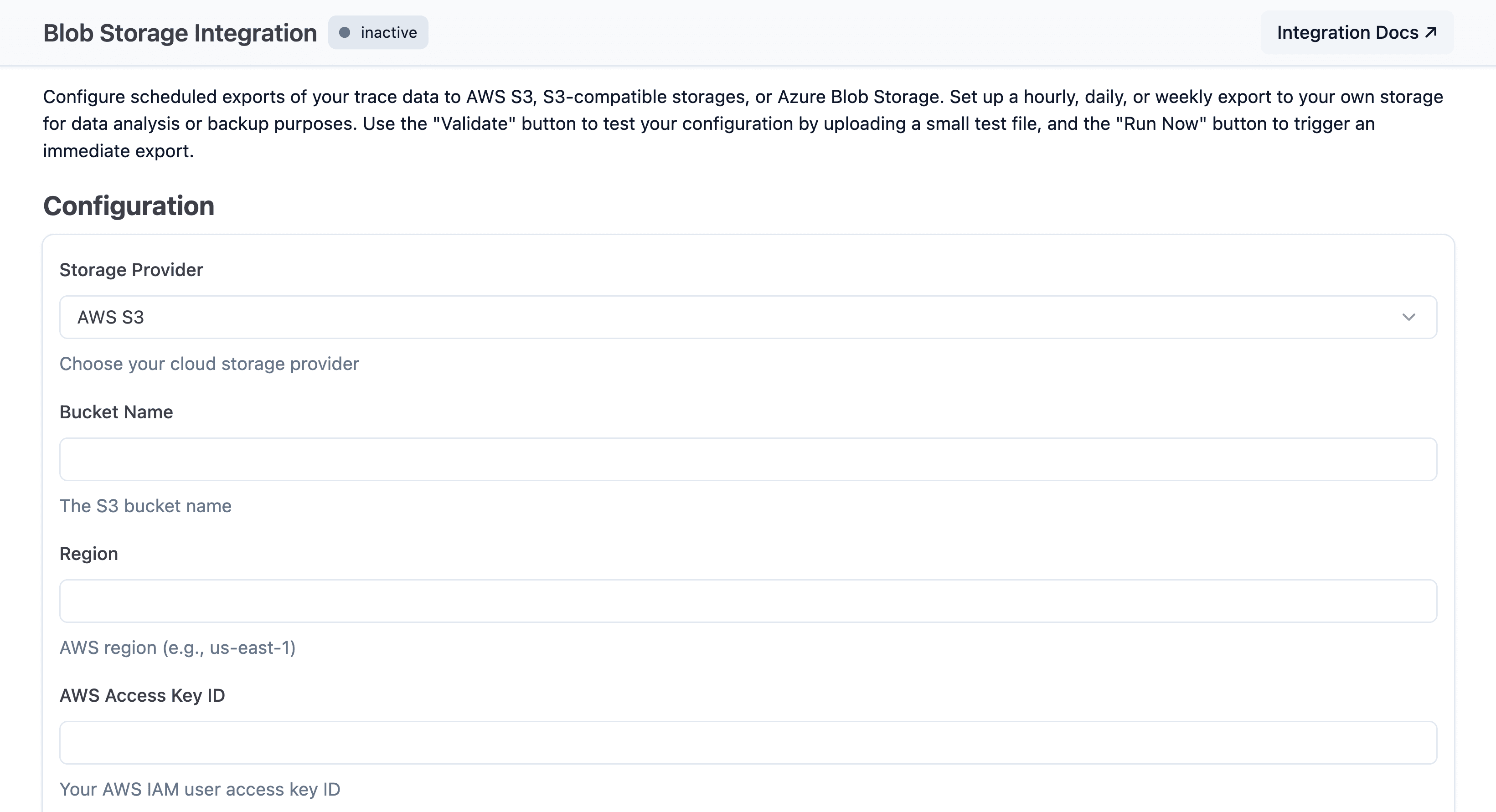
Navigate to your project settings and select Integrations > Blob Storage to set up a new export.
Select whether you want to use S3, a S3 compatible storage, Google Cloud Storage, or Azure Blob Storage.
Start exporting via Blob Storage
To set up the export navigate to Your Project > Settings > Integrations > Blob Storage.
Fill in the settings to authenticate with your vendor, enable the integration, and press save. An initial export starts shortly after you enable the integration and then continues on the schedule you selected. The export supports CSV, JSON, and JSONL file formats. Read our blob storage documentation for more information on how to get credentials for your specific vendor.
Export source (Fast Preview)
Blob Storage integrations now include an Export Source selector. New integrations default to Enriched observations (recommended) (trace attributes are directly set on observations).
This source uses enriched observations with trace attributes and provides significantly better export performance. Scores are always included, regardless of the selected source.
Available options:
Traces and observations (legacy)Traces and observations (legacy) and enriched observationsEnriched observations (recommended)
Traces and observations (legacy) sources may be deprecated in the future.
All new export jobs should use Enriched observations (recommended), and
existing legacy jobs are strongly recommended to upgrade.
Cloud projects created on or after 2026-05-20 will not see the Export Source selector — new Cloud projects export as Enriched observations (recommended) automatically. The REST API rejects legacy values for these projects with 400 BAD_REQUEST. Existing projects and all self-hosted deployments are unaffected.
Upgrade path for existing configurations
This migration path applies to pre-cutoff Cloud projects and self-hosted deployments. Post-cutoff Cloud projects already use Enriched observations (recommended) and cannot select legacy sources.
Existing integrations continue to use Traces and observations (legacy) until changed.
To migrate safely:
- Switch to
Traces and observations (legacy) and enriched observations. - Validate downstream jobs and data consumers while both sources are exported (this mode creates duplicate records by design).
- Switch to
Enriched observations (recommended)once validation is complete.
For rollout details, see the Simplify for Scale changelog.
Exported fields
For a complete reference of all fields included in each export file (traces, observations, enriched observations, and scores), see the Export Field Reference.
Choose which columns are exported
For the Enriched observations (recommended) and Traces and observations (legacy) and enriched observations sources, you can choose which column groups appear in each row of the enriched observations export. Eleven groups cover the full row, ten of which are toggleable; toggle them in Project Settings → Integrations → Blob Storage under Export Field Groups.
| Group | Columns | Toggleable |
|---|---|---|
core | id, trace_id, start_time, end_time, project_id, parent_observation_id, type | Required (always exported) |
basic | name, level, status_message, version, environment, bookmarked, public, user_id, session_id | Yes |
time | completion_start_time, created_at, updated_at | Yes |
io | input, output | Yes |
metadata | metadata | Yes |
model | provided_model_name, model_id, model_parameters, input_price, output_price, total_price | Yes |
usage | usage_details, cost_details, total_cost, usage_pricing_tier_id, usage_pricing_tier_name | Yes |
prompt | prompt_id, prompt_name, prompt_version | Yes |
metrics | latency, time_to_first_token | Yes |
tools | tool_definitions, tool_calls, tool_call_names | Yes |
trace_context | tags, release, trace_name | Yes |
Per-unit pricing fields (input_price, output_price, total_price) live in the model group — they come from the matched model definition. Deselecting model skips the worker-side model pricing lookup entirely. The usage_pricing_tier_id and usage_pricing_tier_name fields stay in the usage group.
New integrations default to all eleven groups, so behavior matches earlier exports unless you narrow the selection. The Traces and observations (legacy) source uses a fixed column set and ignores field groups.
Configure via REST API
GET and PUT /api/public/integrations/blob-storage accept and return:
exportSource—LEGACY_TRACES_OBSERVATIONS,OBSERVATIONS_V2, orLEGACY_TRACES_AND_ENRICHED_OBSERVATIONS.exportFieldGroups— a list of group names. Must includecorewhen provided. Must be omitted ornullforLEGACY_TRACES_OBSERVATIONS(the REST contract returnsnullon read and rejects non-null on write for that source). When omitted on update, the existing value is preserved.compressed— boolean; defaults totruefor new integrations. Whentrue, files are written as.csv.gz,.json.gz, or.jsonl.gz.
See the API reference for the full schema.
Export modes
The Export Mode determines how far back the integration starts exporting from:
| Mode | Starts from | When to use |
|---|---|---|
| Full history | The earliest data in your project | You want a complete one-time backfill of all existing data alongside ongoing exports. |
| From setup date | The moment you enable the integration | You only care about data going forward and don't need history — the lightest option to get started. |
| From custom date | A start date you choose | You want history from a specific point (for example, the start of a quarter) without exporting everything before it. |
Changing the mode resets the sync position, so it's also the mechanism for re-scanning history — see Re-exporting data and configuration changes.
How exports run
Each run exports one time window of data to your bucket, then advances and exports the next window on your configured schedule.
- Export delay. Data is exported with a short delay rather than right up to the current moment, so records still moving through ingestion are not exported half-written. Expect a brief lag between when an event is recorded and when it appears in your bucket.
- Catch-up / backfill. When an integration starts from a historic point — or falls behind — it works forward through the backlog and may write many files in quick succession before settling into its normal cadence. A freshly created full-history integration does this until it catches up to the present.
Export status
The integration settings page shows a status badge:
| Badge | Meaning |
|---|---|
| Active | Enabled and synced; the next export is scheduled for the future. |
| Queued | An export is due and waiting to run. |
| Pending | Enabled but has not run an export yet (Data exported up to shows Never (pending)). |
| Disabled | The integration is turned off. |
| Error | The most recent export failed; an error message and timestamp are shown. |
The status card on the same page also surfaces:
- Data exported up to — timestamp of the last successfully exported window (or
Never (pending)). - Next export scheduled — when the next run will happen.
- Export mode —
Full history,From setup date, orFrom custom date(plus the start date where applicable). - A Last export failed alert with the error message and time when in the Error state.
A failed export is retried automatically on the next run; repeated failures trigger a notification.
Re-exporting data and configuration changes
Editing an integration — credentials, bucket, prefix, frequency, file type, export source, field groups, or compression — applies to future exports only. It does not re-export data that was already exported (or skipped) under the previous configuration; the export continues from where it left off.
There are two ways to re-export historic data:
- Change the Export Mode (
Full history/From setup date/From custom date). Changing the mode resets the sync position so the new mode's start-date logic takes effect — for example, switching toFull historyre-scans from the earliest data. Editing other fields does not reset this. - Reset the integration. The Reset button removes the integration; you then reconfigure it from scratch and it starts fresh.
Run Now triggers an immediate export of data since the last sync — it does not re-export history.
The Error state is sticky: fixing a misconfiguration (for example, wrong credentials) does not immediately clear the Error badge or the "Last export failed" alert. The recorded error is cleared only when an export next succeeds. Use the Validate button to confirm a new configuration works without waiting for the next scheduled run.
Empty files in your bucket
Empty files are expected and normal — they are not an error or a sign of data loss. A given time window may contain data for some tables but not others (for example, observations but no scores in that window). When a table has no data for a window, the exporter may still write a file for it, and that file will be empty.
What an empty file looks like depends on the configured file format:
| Format | Empty file looks like |
|---|---|
| JSON | A file containing [] |
| JSONL | An empty file |
| CSV | A header row only (or empty) |
Build downstream pipelines to tolerate empty files:
- Treat an empty file as "no data in this window for this table," not as a failure, and don't alert on its presence.
- Don't assume a file is always present for every window and table. List the objects in each directory and ingest what's there rather than relying on a fixed file-per-window pattern.
- Point pipelines at the directory (for example
observations_v2/orscores/) rather than parsing filenames. The directory prefixes are stable, but the exact filename format within them is not a stable contract.
Alternatives
You can also export data via:
- UI - Manual batch-exports from the Langfuse UI
- SDKs/API - Programmatic access using Langfuse SDKs or API
Last edited


