Cookbook: LangGraph Integration
What is LangGraph?
LangGraph is an open-source framework by the LangChain team for building complex, stateful, multi-agent applications using large language models (LLMs). LangGraph includes built-in persistence to save and resume state, which enables error recovery and human-in-the-loop workflows.
Goal of this Cookbook
This cookbook demonstrates how Langfuse helps to debug, analyze, and iterate on your LangGraph application using the LangChain integration.
By the end of this cookbook, you will be able to:
- Automatically trace LangGraph application via the Langfuse integration
- Add clear trace names, run names, tags, and metadata so traces are easier to find in the Langfuse dashboard
- Monitor advanced multi-agent setups
- Add scores (like user feedback) to existing LangGraph traces
- Manage your prompts used in LangGraph with Langfuse
This cookbook is structured as a trace-quality progression: basic trace, named and filterable trace, managed prompt trace, multi-agent traces, nested agents in one trace, and finally a scored trace. Each graph invocation creates a new trace; the scoring example attaches feedback to an existing trace instead of creating another one.
Initialize Langfuse
Initialize the Langfuse client with your API keys from the project settings in the Langfuse UI and add them to your environment.
Note: You need to run at least Python 3.11 (GitHub Issue).
%pip install langfuse langchain langgraph langchain_openai langchain_communityimport os
# Get keys for your project from the project settings page: https://cloud.langfuse.com
os.environ.setdefault("LANGFUSE_PUBLIC_KEY", "pk-lf-...")
os.environ.setdefault("LANGFUSE_SECRET_KEY", "sk-lf-...")
os.environ.setdefault("LANGFUSE_BASE_URL", "https://cloud.langfuse.com") # 🇪🇺 EU region
# Other Langfuse data regions include 🇺🇸 US: https://us.cloud.langfuse.com, 🇯🇵 Japan: https://jp.cloud.langfuse.com and ⚕️ HIPAA: https://hipaa.cloud.langfuse.com
os.environ["LANGFUSE_TRACING_ENVIRONMENT"] = "development"
# Your openai key
os.environ.setdefault("OPENAI_API_KEY", "sk-proj-...")With the environment variables set, we can now initialize the Langfuse client. get_client() initializes the Langfuse client using the credentials provided in the environment variables.
from langfuse import get_client

langfuse = get_client()

# Verify connection
if langfuse.auth_check():
    print("Langfuse client is authenticated and ready!")
else:
    print("Authentication failed. Please check your credentials and host.")
Example 1: Basic LangGraph chatbot trace
What we will do in this section:
- Build a support chatbot in LangGraph that can answer common questions
- Tracing the chatbot's input and output using Langfuse
We will start with a basic chatbot trace, then improve it with better naming and filtering context in the next example.
Create Agent
Start by creating a StateGraph. A StateGraph object defines our chatbot's structure as a state machine. We will add nodes to represent the LLM and functions the chatbot can call, and edges to specify how the bot transitions between these functions.
from typing import Annotated

from langchain_openai import ChatOpenAI
from langchain_core.messages import HumanMessage
from typing_extensions import TypedDict

from langgraph.graph import StateGraph
from langgraph.graph.message import add_messages

class State(TypedDict):
    # Messages have the type "list". The `add_messages` function in the annotation defines how this state key should be updated
    # (in this case, it appends messages to the list, rather than overwriting them)
    messages: Annotated[list, add_messages]

graph_builder = StateGraph(State)

llm = ChatOpenAI(model = "gpt-4o", temperature = 0.2)

# The chatbot node function takes the current State as input and returns an updated messages list. This is the basic pattern for all LangGraph node functions.
def chatbot(state: State):
    return {"messages": [llm.invoke(state["messages"])]}

# Add a "chatbot" node. Nodes represent units of work. They are typically regular python functions.
graph_builder.add_node("chatbot", chatbot)

# Add an entry point. This tells our graph where to start its work each time we run it.
graph_builder.set_entry_point("chatbot")

# Set a finish point. This instructs the graph "any time this node is run, you can exit."
graph_builder.set_finish_point("chatbot")

# To be able to run our graph, call "compile()" on the graph builder. This creates a "CompiledGraph" we can use invoke on our state.
graph = graph_builder.compile()
Basic trace with Langfuse callback
Now, we will add the Langfuse callback handler for LangChain to trace the steps of our application: config={"callbacks": [langfuse_handler]}. This is the minimal setup and may create generic names such as LangGraph in the dashboard.
from langfuse.langchain import CallbackHandler

# Initialize Langfuse CallbackHandler for Langchain (tracing)
langfuse_handler = CallbackHandler()

for s in graph.stream({"messages": [HumanMessage(content = "What is Langfuse?")]},
                      config={"callbacks": [langfuse_handler]}):
    print(s)
Visualize the chat app
You can visualize the graph using the get_graph method along with a "draw" method
from IPython.display import Image, display
display(Image(graph.get_graph().draw_mermaid_png()))
Example 2: Named and filterable chatbot trace
For production applications, add a clear trace name, run name, tags, user/session identifiers, and metadata. This example reuses the chatbot from Example 1, but makes the resulting trace easier to find in the Langfuse dashboard and easier to group with related traces.
from langfuse import propagate_attributes

with propagate_attributes(
    trace_name="LangGraph Simple Chatbot",
    user_id="user-123",
    session_id="session-abc",
    tags=["langgraph", "cookbook", "simple-chatbot"],
    metadata={"example": "simple-chatbot", "framework": "langgraph"},
):
    for s in graph.stream(
        {"messages": [HumanMessage(content="What is Langfuse?")]},
        config={
            "callbacks": [langfuse_handler],
            "run_name": "handle-chatbot-message",
        },
    ):
        print(s)
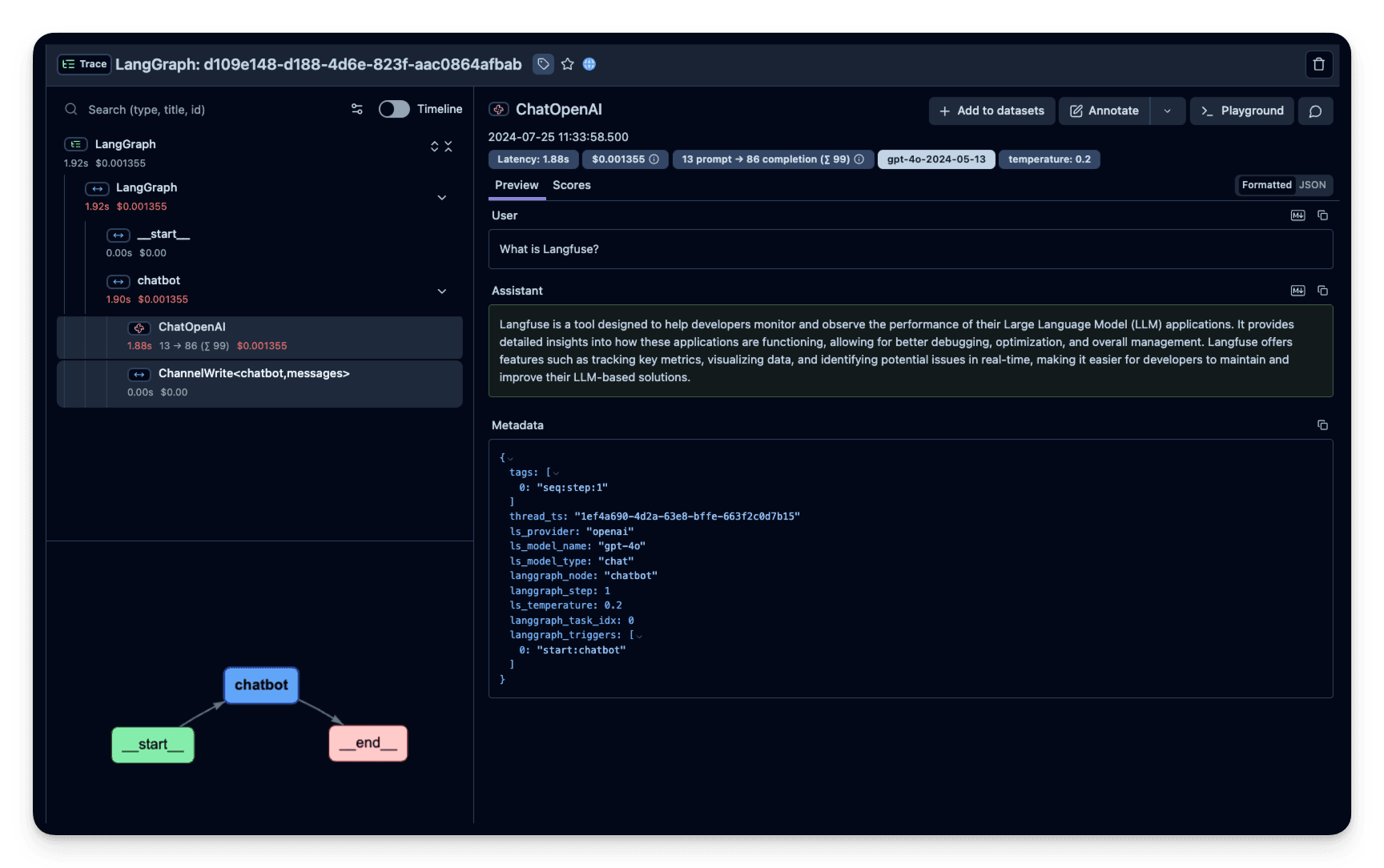
View traces in Langfuse
After running Examples 1 and 2, you will see two traces: one basic automatic trace and one named trace. In the dashboard, use the Trace Name column to find LangGraph Simple Chatbot and the Name column to find handle-chatbot-message.
Example 3: Use a managed prompt in the chatbot trace
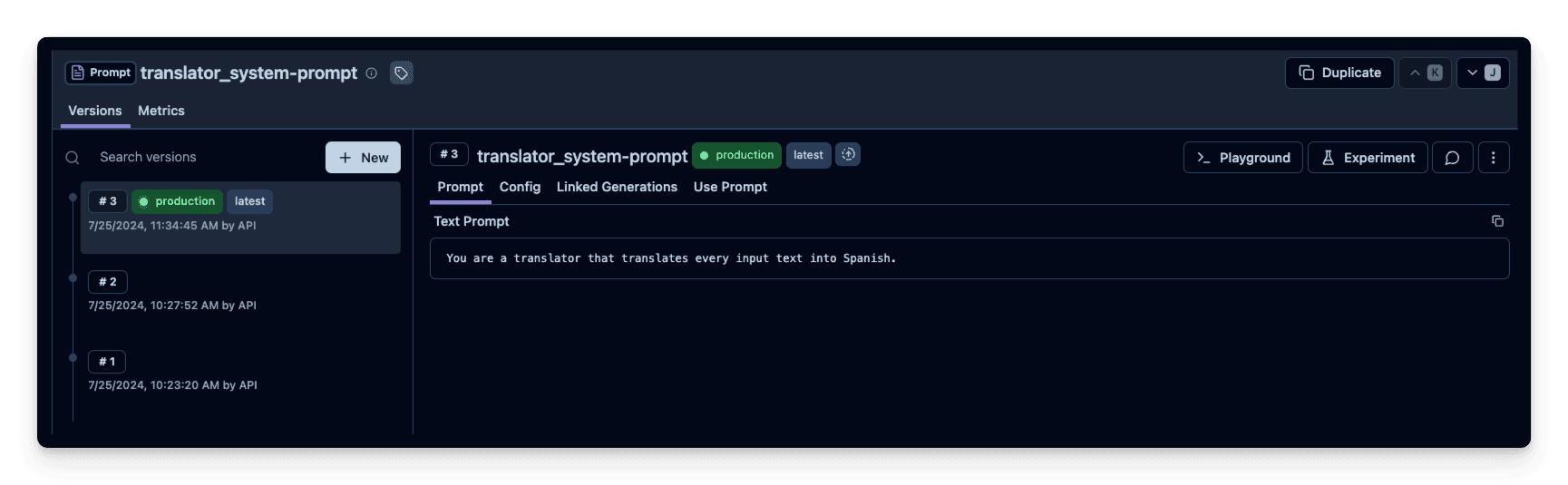
This example keeps the same simple chatbot question from Examples 1 and 2, but fetches a system prompt from Langfuse Prompt Management. The managed prompt asks the model to answer in Spanish. This creates one additional simple chatbot trace that you can compare with the named trace from Example 2.
Langfuse prompt management is basically a Prompt CMS (Content Management System). Alternatively, you can also edit and version the prompt in the Langfuse UI.
Namethat identifies the prompt in Langfuse Prompt Management- Prompt with prompt template incl.
{{input variables}} labelsto includeproductionto immediately use prompt as the default
In this example, we create a system prompt for an assistant that answers every user message in Spanish.
from langfuse import get_client

langfuse = get_client()

langfuse.create_prompt(
    name="spanish_answer_system-prompt",
    prompt="You are an assistant that answers every user message in Spanish.",
    labels=["production"]
)
Use the utility method .get_langchain_prompt() to transform the Langfuse prompt into a string that can be used in Langchain.
Context: Langfuse declares input variables in prompt templates using double brackets ({{input variable}}). Langchain uses single brackets for declaring input variables in PromptTemplates ({input variable}). The utility method .get_langchain_prompt() replaces the double brackets with single brackets. In this example, however, we don't use any variables in our prompt.
# Get current production version of prompt and transform the Langfuse prompt into a string that can be used in Langchain
langfuse_system_prompt = langfuse.get_prompt("spanish_answer_system-prompt")
langchain_system_prompt = langfuse_system_prompt.get_langchain_prompt()

print(langchain_system_prompt)
Now we can use the new system prompt string to update our assistant.
from typing import Annotated
from langchain_openai import ChatOpenAI
from typing_extensions import TypedDict
from langgraph.graph import StateGraph
from langgraph.graph.message import add_messages

class State(TypedDict):
    messages: Annotated[list, add_messages]

graph_builder = StateGraph(State)

llm = ChatOpenAI(model = "gpt-4o", temperature = 0.2)

# Add the system prompt for our Spanish-answering assistant
system_prompt = {
    "role": "system",
    "content": langchain_system_prompt
}

def chatbot(state: State):
    messages_with_system_prompt = [system_prompt] + state["messages"]
    response = llm.invoke(messages_with_system_prompt)
    return {"messages": [response]}

graph_builder.add_node("chatbot", chatbot)
graph_builder.set_entry_point("chatbot")
graph_builder.set_finish_point("chatbot")
graph = graph_builder.compile()
from langfuse import propagate_attributes
from langfuse.langchain import CallbackHandler
# Initialize Langfuse CallbackHandler for Langchain (tracing)
langfuse_handler = CallbackHandler()
with propagate_attributes(
trace_name="LangGraph Managed Prompt Chatbot",
user_id="user-123",
session_id="session-abc",
tags=["langgraph", "cookbook", "managed-prompt"],
metadata={"example": "managed-prompt-chatbot", "framework": "langgraph"},
):
for s in graph.stream(
{"messages": [HumanMessage(content="What is Langfuse?")]},
config={
"callbacks": [langfuse_handler],
"run_name": "answer-with-managed-prompt",
},
):
print(s)View trace in Langfuse
After running Example 3, use the Trace Name column to find LangGraph Managed Prompt Chatbot and the Name column to find answer-with-managed-prompt.
Example 4: Multi-agent traces with supervisor routing
What we will do in this section:
- Build 2 executing agents: One research agent using the LangChain WikipediaAPIWrapper to search Wikipedia and one that uses a custom tool to get the current time.
- Build an agent supervisor to help delegate the user questions to one of the two agents
- Add Langfuse handler as callback to trace the steps of the supervisor and executing agents
%pip install langfuse langgraph langchain langchain_openai langchain_experimental pandas wikipediaCreate tools
For this example, you build an agent to do wikipedia research, and one agent to tell you the current time. Define the tools they will use below:
from typing import Annotated

from langchain_community.tools import WikipediaQueryRun
from langchain_community.utilities import WikipediaAPIWrapper
from datetime import datetime
from langchain.tools import tool

# Define a tool that searches Wikipedia
_wikipedia_query = WikipediaQueryRun(api_wrapper=WikipediaAPIWrapper())

@tool("wikipedia")
def wikipedia_tool(query: str) -> str:
    """Search Wikipedia for the given query and return a summary."""
    try:
        return _wikipedia_query.invoke(query)
    except Exception as exc:
        return f"Wikipedia lookup failed ({exc}). Answer from your own knowledge instead."

# Define a new tool that returns the current datetime
@tool("current_datetime")
def datetime_tool() -> str:
    """Returns the current datetime."""
    return datetime.now().isoformat()
Helper utilities
Define a helper function below to simplify adding new agent worker nodes.
from langchain.agents import create_agent
from langchain_core.messages import BaseMessage, HumanMessage
from langchain_openai import ChatOpenAI

def create_worker_agent(llm: ChatOpenAI, system_prompt: str, tools: list):
    # Each worker node will be given a name and some tools.
    return create_agent(
        model=llm,
        tools=tools,
        system_prompt=system_prompt,
    )

def agent_node(state, agent, name):
    result = agent.invoke(state)
    return {"messages": [HumanMessage(content=result["messages"][-1].content, name=name)]}
Create agent supervisor
It will use function calling to choose the next worker node OR finish processing.
from langchain_core.prompts import ChatPromptTemplate, MessagesPlaceholder

members = ["Researcher", "CurrentTime"]
system_prompt = (
    "You are a supervisor tasked with managing a conversation between the"
    " following workers:  {members}. Given the following user request,"
    " respond with the worker to act next. Each worker will perform a"
    " task and respond with their results and status. When finished,"
    " respond with FINISH."
)
# Our team supervisor is an LLM node. It just picks the next agent to process and decides when the work is completed
options = ["FINISH"] + members

# Using structured output can make routing easier for us
function_def = {
    "name": "route",
    "description": "Select the next role.",
    "parameters": {
        "title": "routeSchema",
        "type": "object",
        "properties": {
            "next": {
                "title": "Next",
                "anyOf": [
                    {"enum": options},
                ],
            }
        },
        "required": ["next"],
    },
}

# Create the prompt using ChatPromptTemplate
prompt = ChatPromptTemplate.from_messages(
    [
        ("system", system_prompt),
        MessagesPlaceholder(variable_name="messages"),
        (
            "system",
            "Given the conversation above, who should act next?"
            " Or should we FINISH? Select one of: {options}",
        ),
    ]
).partial(options=str(options), members=", ".join(members))

llm = ChatOpenAI(model="gpt-4o")

# Construction of the chain for the supervisor agent
supervisor_chain = prompt | llm.with_structured_output(function_def)
Construct graph
Now we are ready to start building the graph. Below, define the state and worker nodes using the function we just defined. Then we connect all the edges in the graph.
import functools
import operator
from typing import Sequence, TypedDict
from langchain_core.prompts import ChatPromptTemplate, MessagesPlaceholder
from langgraph.graph import END, StateGraph, START

# The agent state is the input to each node in the graph
class AgentState(TypedDict):
    # The annotation tells the graph that new messages will always be added to the current states
    messages: Annotated[Sequence[BaseMessage], operator.add]
    # The 'next' field indicates where to route to next
    next: str

# Add the research agent using the create_agent helper function
research_agent = create_worker_agent(llm, "You are a web researcher.", [wikipedia_tool])
research_node = functools.partial(agent_node, agent=research_agent, name="Researcher")

# Add the time agent using the create_agent helper function
currenttime_agent = create_worker_agent(llm, "You can tell the current time.", [datetime_tool])
currenttime_node = functools.partial(agent_node, agent=currenttime_agent, name = "CurrentTime")

workflow = StateGraph(AgentState)

# Add a "chatbot" node. Nodes represent units of work. They are typically regular python functions.
workflow.add_node("Researcher", research_node)
workflow.add_node("CurrentTime", currenttime_node)
workflow.add_node("supervisor", supervisor_chain)

# We want our workers to ALWAYS "report back" to the supervisor when done
for member in members:
    workflow.add_edge(member, "supervisor")

# Conditional edges usually contain "if" statements to route to different nodes depending on the current graph state.
# These functions receive the current graph state and return a string or list of strings indicating which node(s) to call next.
conditional_map = {k: k for k in members}
conditional_map["FINISH"] = END
workflow.add_conditional_edges("supervisor", lambda x: x["next"], conditional_map)

# Add an entry point. This tells our graph where to start its work each time we run it.
workflow.add_edge(START, "supervisor")

# To be able to run our graph, call "compile()" on the graph builder. This creates a "CompiledGraph" we can use invoke on our state.
graph_2 = workflow.compile()
Visualize the agent
You can visualize the graph using the get_graph method along with a "draw" method
from IPython.display import Image, display
display(Image(graph_2.get_graph().draw_mermaid_png()))
Add Langfuse as callback to the invocation
Add Langfuse handler as callback: config={"callbacks": [langfuse_handler]}. This section runs the graph twice, so you will see two traces in Langfuse: one for the research question and one for the current-time question.
from langfuse import propagate_attributes
from langfuse.langchain import CallbackHandler

# Initialize Langfuse CallbackHandler for Langchain (tracing)
langfuse_handler = CallbackHandler()

with propagate_attributes(
    trace_name="LangGraph Research Agent",
    user_id="user-123",
    session_id="session-abc",
    tags=["langgraph", "cookbook", "multi-agent", "research"],
    metadata={"example": "multi-agent", "route": "research"},
):
    for s in graph_2.stream(
        {"messages": [HumanMessage(content="How does photosynthesis work?")]},
        config={
            "callbacks": [langfuse_handler],
            "run_name": "answer-research-question",
        },
    ):
        print(s)
        print("----")
with propagate_attributes(
trace_name="LangGraph Time Agent",
user_id="user-123",
session_id="session-abc",
tags=["langgraph", "cookbook", "multi-agent", "tool-calling"],
metadata={"example": "multi-agent", "route": "current-time"},
):
for s in graph_2.stream(
{"messages": [HumanMessage(content="What time is it?")]},
config={
"callbacks": [langfuse_handler],
"run_name": "answer-time-question",
},
):
print(s)
print("----")See traces in Langfuse
Use the Trace Name column to find LangGraph Research Agent and LangGraph Time Agent. Use the Name column to find answer-research-question and answer-time-question.
Example traces in Langfuse:

Example 5: Nested LangGraph agents in one trace
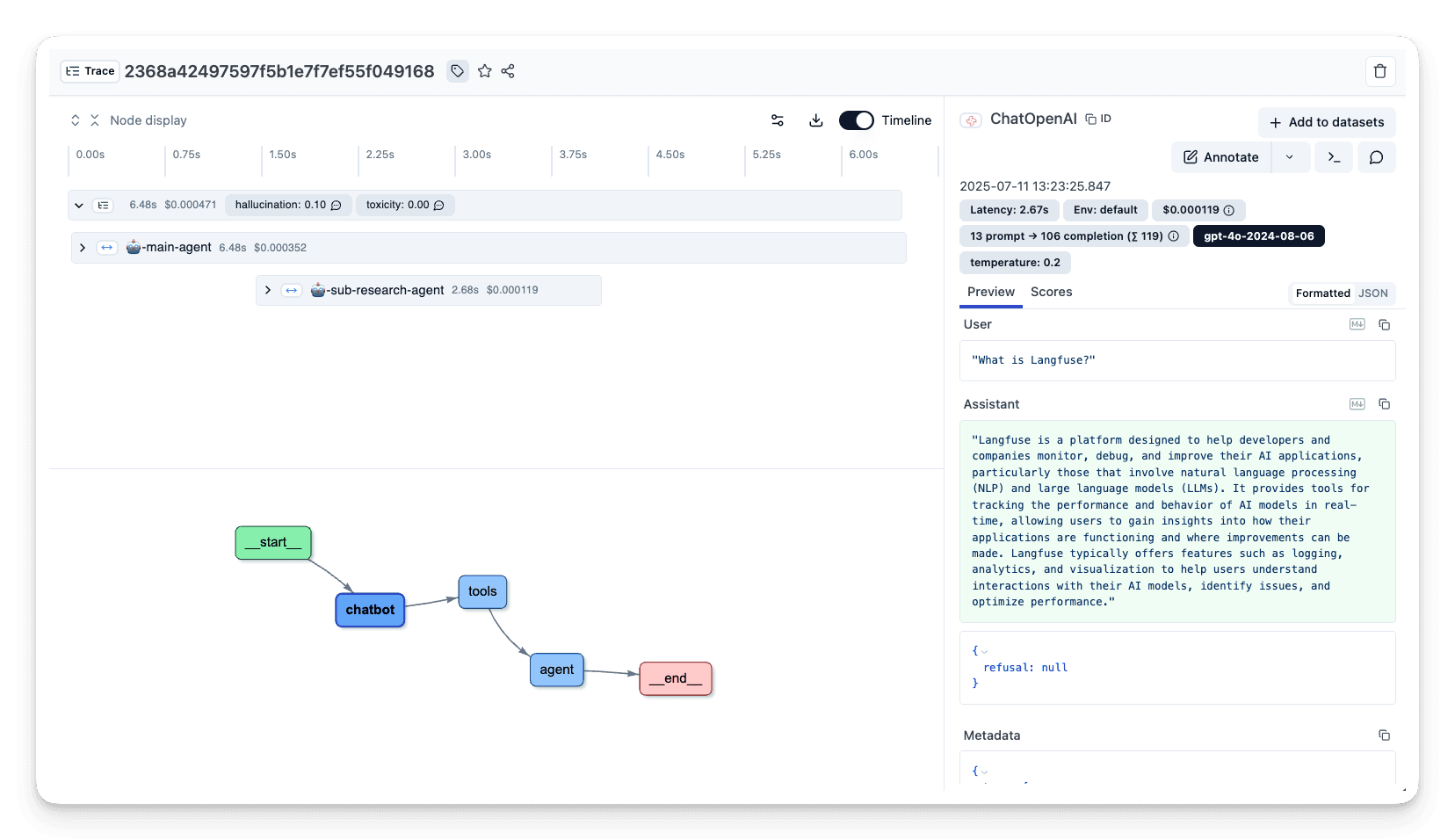
There are setups where one LangGraph agent uses one or multiple other LangGraph agents. To combine all corresponding spans in one single trace for the multi agent execution, we can pass a custom trace_id. This section creates one trace named LangGraph Nested Agent that contains the main agent, the research tool, and the sub-agent call.
First, we generate a trace_id that can be used for both agents to group the agent executions together in one Langfuse trace.
from langfuse import get_client, Langfuse, propagate_attributes
from langfuse.langchain import CallbackHandler

langfuse = get_client()

# Generate deterministic trace ID from external system
predefined_trace_id = Langfuse.create_trace_id()

# Initialize Langfuse CallbackHandler for Langchain (tracing)
langfuse_handler = CallbackHandler()
Next, we set up the sub-agent.
from typing import Annotated
from langchain_openai import ChatOpenAI
from langchain_core.messages import HumanMessage
from typing_extensions import TypedDict
from langgraph.graph import StateGraph
from langgraph.graph.message import add_messages

class State(TypedDict):
    messages: Annotated[list, add_messages]

graph_builder = StateGraph(State)

llm = ChatOpenAI(model = "gpt-4o", temperature = 0.2)

def chatbot(state: State):
    return {"messages": [llm.invoke(state["messages"])]}

graph_builder.add_node("chatbot", chatbot)
graph_builder.set_entry_point("chatbot")
graph_builder.set_finish_point("chatbot")
sub_agent = graph_builder.compile()
Then, we set the tool that uses the research-sub-agent to answer questions.
from langchain_core.tools import tool

@tool
def langgraph_research(question):
  """Conducts research for various topics."""

  with langfuse.start_as_current_observation(
      as_type="span",
      name="call-research-sub-agent",
      trace_context={"trace_id": predefined_trace_id}
  ) as span:
      span.update(input=question)

      response = sub_agent.invoke(
          {"messages": [HumanMessage(content=question)]},
          config={
              "callbacks": [langfuse_handler],
              "run_name": "research-sub-agent",
          },
      )

      span.update(output=response["messages"][-1].content)

  return response["messages"][-1].content
Set up a second simple LangGraph agent that uses the new langgraph_research.
from langgraph.prebuilt import create_react_agent
from langchain_openai import ChatOpenAI

llm = ChatOpenAI(model = "gpt-4o", temperature = 0.2)

main_agent = create_react_agent(
    model=llm,
    tools=[langgraph_research]
)
user_question = "What is Langfuse?"
# Use the predefined trace ID with trace_context
with langfuse.start_as_current_observation(
as_type="span",
name="run-nested-langgraph-agent",
trace_context={"trace_id": predefined_trace_id}
) as span:
with propagate_attributes(
trace_name="LangGraph Nested Agent",
user_id="user-123",
session_id="session-abc",
tags=["langgraph", "cookbook", "nested-agent"],
metadata={"example": "nested-agent", "framework": "langgraph"},
):
span.update(input=user_question)
# LangChain execution will be part of this trace
response = main_agent.invoke(
{"messages": [{"role": "user", "content": user_question}]},
config={
"callbacks": [langfuse_handler],
"run_name": "main-agent",
},
)
span.update(output=response["messages"][-1].content)
print(f"Trace ID: {predefined_trace_id}") # Use this for scoring laterView traces in Langfuse
Use the Trace Name column to find LangGraph Nested Agent. This is also the trace we score in the next section.
Example 6: Attach a score to the nested LangGraph trace
Scores are used to evaluate single observations or entire traces. They enable you to implement custom quality checks at runtime or facilitate human-in-the-loop evaluation processes.
In the example below, we attach user feedback to the LangGraph Nested Agent trace created in the previous section. This creates no new trace; it keeps the score connected to a real LangGraph execution instead of creating a separate empty trace.
→ Learn more about Custom Scores in Langfuse.
from langfuse import get_client

langfuse = get_client()

# Score the trace created in the previous section.
langfuse.create_score(
    trace_id=predefined_trace_id,
    name="user-feedback",
    value=1,
    data_type="NUMERIC",
    comment="The answer was helpful and easy to understand."
)
View trace with score in Langfuse
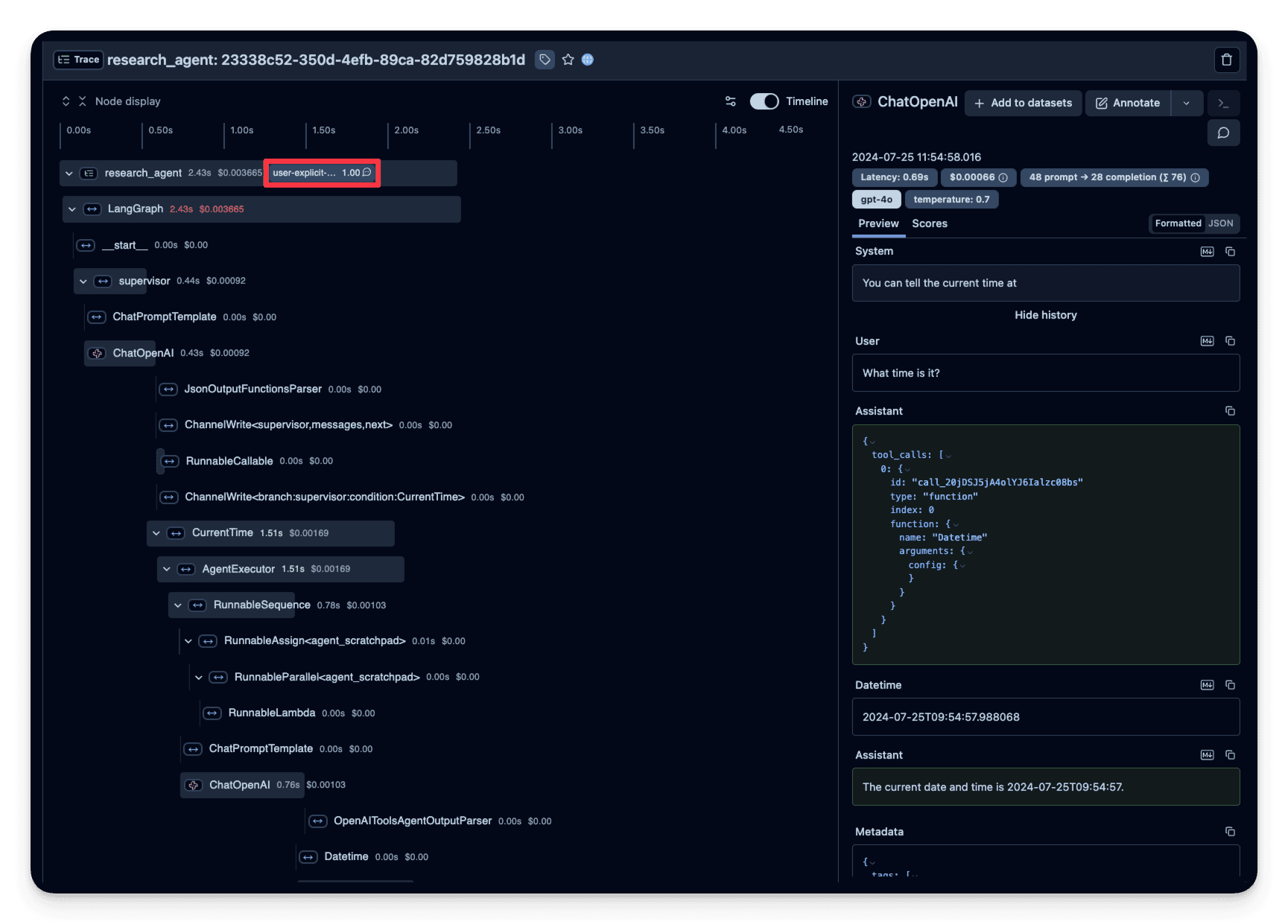
The score appears on the existing LangGraph Nested Agent trace.
Example trace: https://cloud.langfuse.com/project/cloramnkj0002jz088vzn1ja4/traces/e60a078b828d4fdc7ea22c73193b0fe4
Optional: Configure Langfuse with LangGraph Server
You can add Langfuse as callback when using LangGraph Server
When using the LangGraph Server, the LangGraph Server handles graph invocation automatically. Therefore, you should add the Langfuse callback when declaring the graph.
from typing import Annotated

from langchain_openai import ChatOpenAI
from typing_extensions import TypedDict

from langgraph.graph import StateGraph
from langgraph.graph.message import add_messages

from langfuse.langchain import CallbackHandler

class State(TypedDict):
  messages: Annotated[list, add_messages]

graph_builder = StateGraph(State)

llm = ChatOpenAI(model = "gpt-4o", temperature = 0.2)

def chatbot(state: State):
  return {"messages": [llm.invoke(state["messages"])]}

graph_builder.add_node("chatbot", chatbot)
graph_builder.set_entry_point("chatbot")
graph_builder.set_finish_point("chatbot")

# Initialize Langfuse CallbackHandler for Langchain (tracing)
langfuse_handler = CallbackHandler()

# Call "with_config" from the compiled graph.
# It returns a "CompiledGraph", similar to "compile", but with callbacks included.
# This enables automatic graph tracing without needing to add callbacks manually every time.
server_graph = graph_builder.compile().with_config({"callbacks": [langfuse_handler]})Last edited


